cnemaiGo to Studio

Feature · shoot

From storyboard to finished video, shot by shot

In cnemai each shot has a first frame, its stills and its takes. Find the look on stills, animate the one you like, and cut the takes on a real timeline.

A storyboard is only useful if it turns into the film. In cnemai every frame of the board is a shot with its own page: the first frame, the stills you tried, and the video takes, side by side.

01 · Board

A first frame for every shot

Each shot opens on its first frame. Try a few stills to find the look, cheaply, before you spend on video.
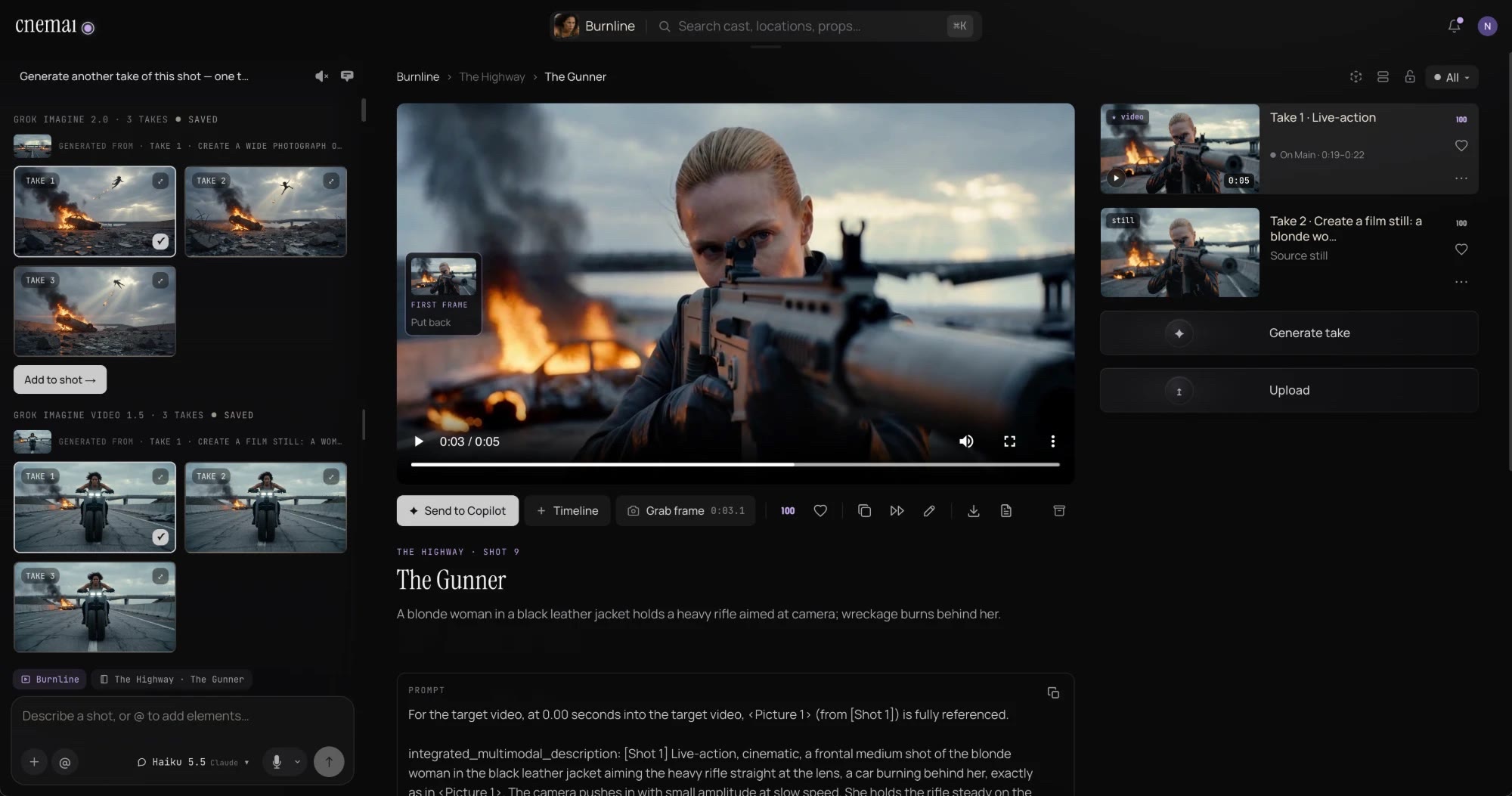
A shot page with its first frame, the take playing, and its stills and video takes listed beside it
02 · Animate

Takes, priced before they render

Ask for a take in plain words, from the still or from references. The price shows first. Try another model if the first one misses, and keep every take on the shot.
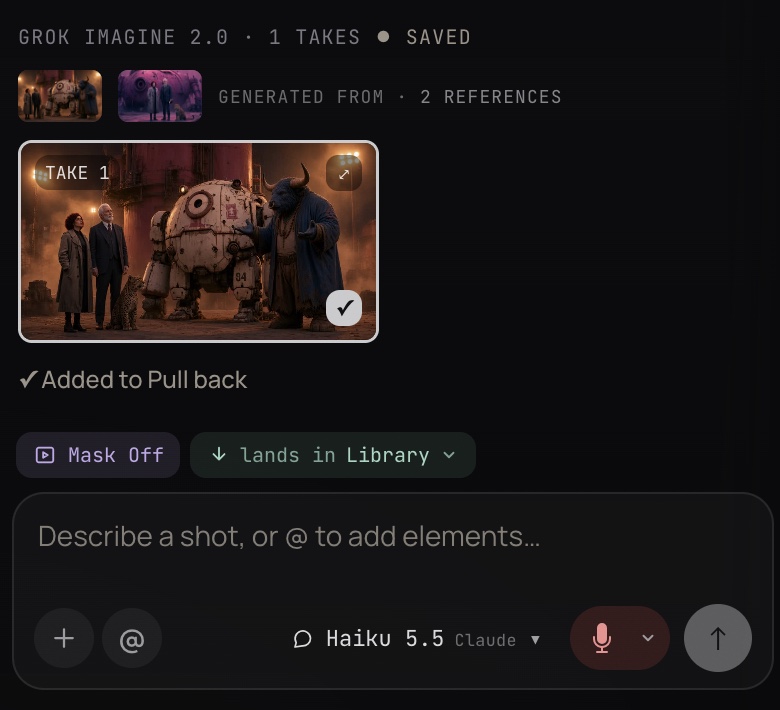
The Copilot panel: a take generated from two references, added to the shot Pull back
03 · Cut

Onto a real timeline

Lay the takes on the Main lane, add voice, sound, score and captions, and save versions as you go. Export a 1080p master.
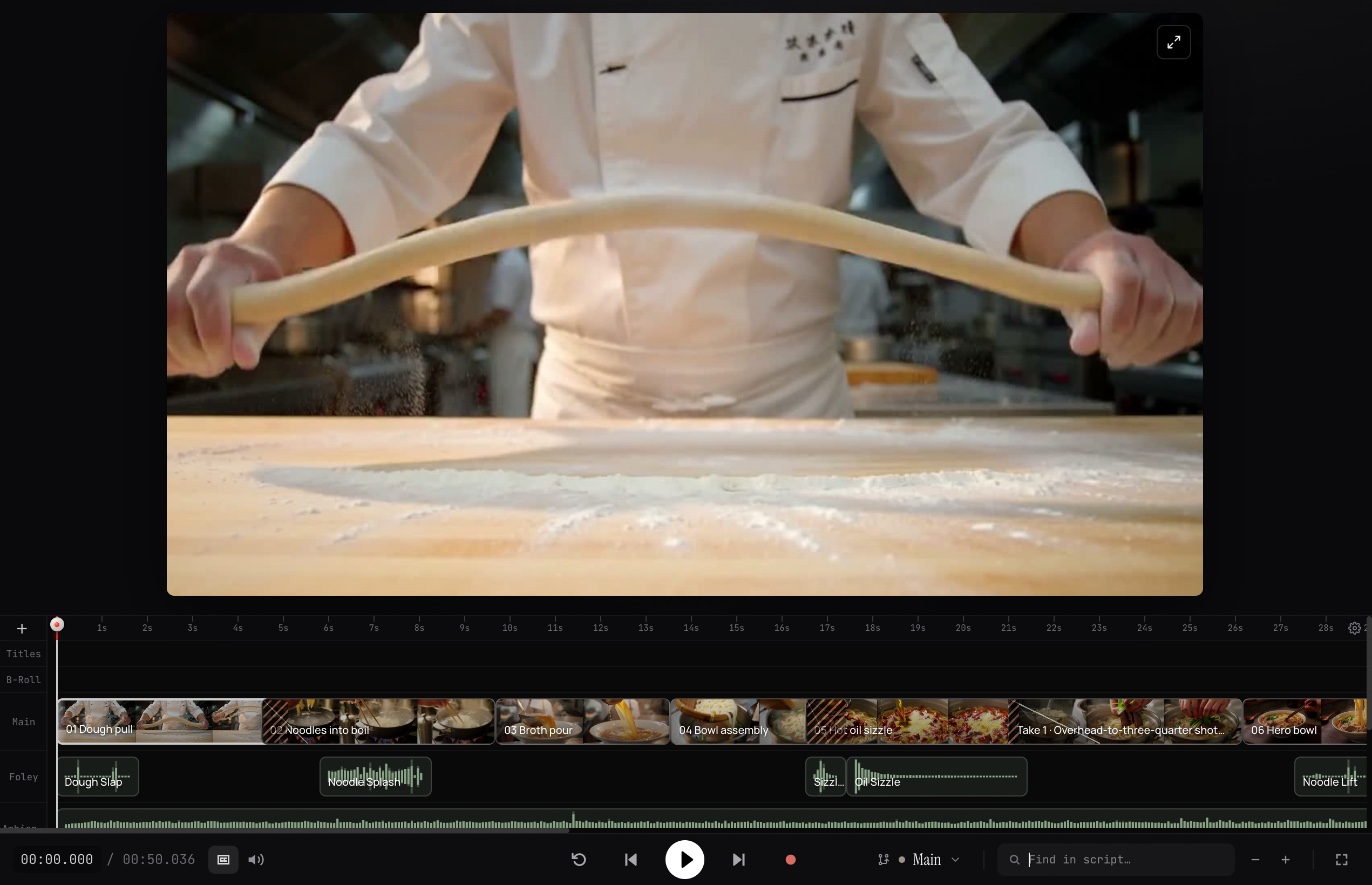
Tony's Noodles on the studio timeline: the player above the Main, Foley and Ambience lanes

Questions

Do I have to animate every still?

No. Try stills first, keep the one you like, and animate only that. Stills cost a few cents; video is priced per second.

How many takes can a shot have?

As many as you ask for. Each take stays on the shot, and you choose which one goes on the cut.

Can one shot pick up where the last one ended?

Yes. The last frame of one shot can open the next.

Which models can I use?

Several video and image models, each with its price on the pricing page. You can try a shot on another model and keep the take that works.

Keep reading

Your film starts with one line.

cnemai is opening by invitation. Leave your email and your invite arrives in your inbox. 14 days free, with $100 of renders on us.

Then $99 a month for the whole studio